
Table of Contents
Introduction
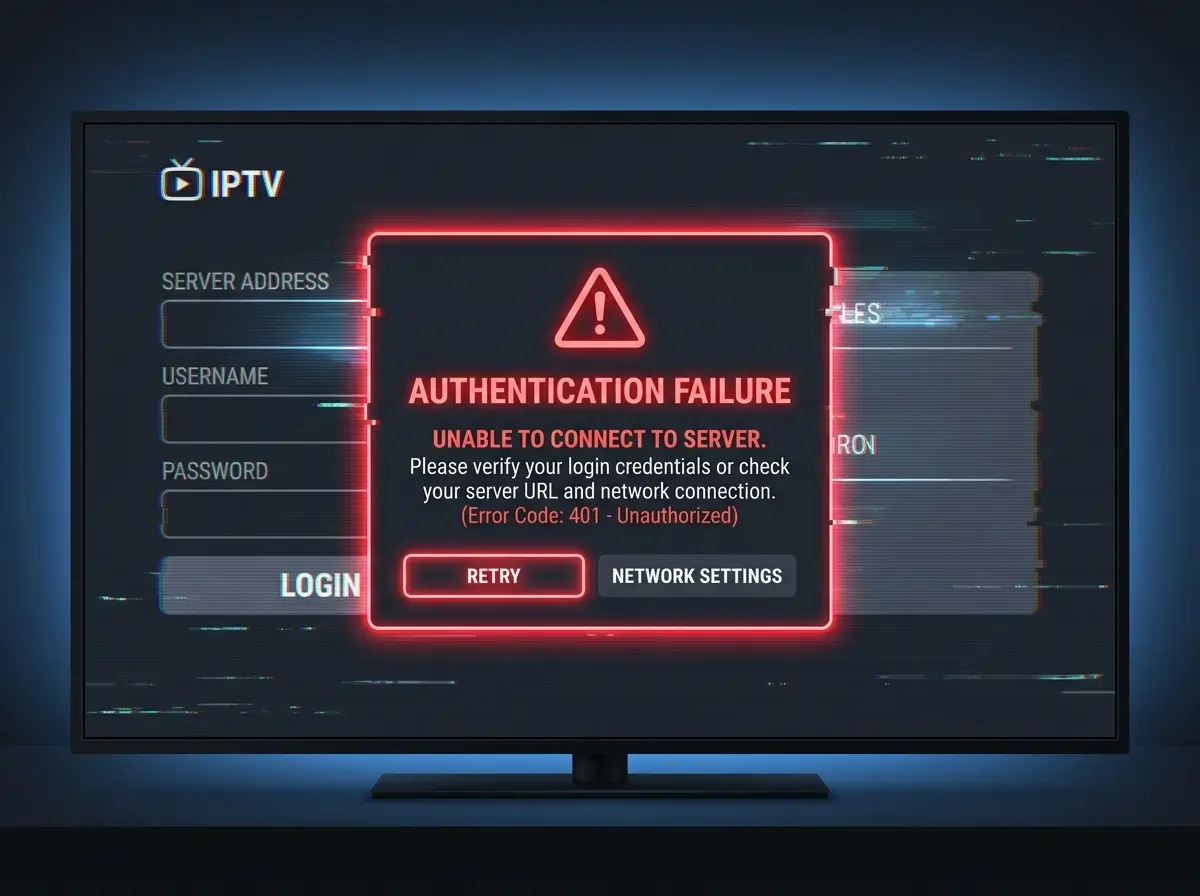
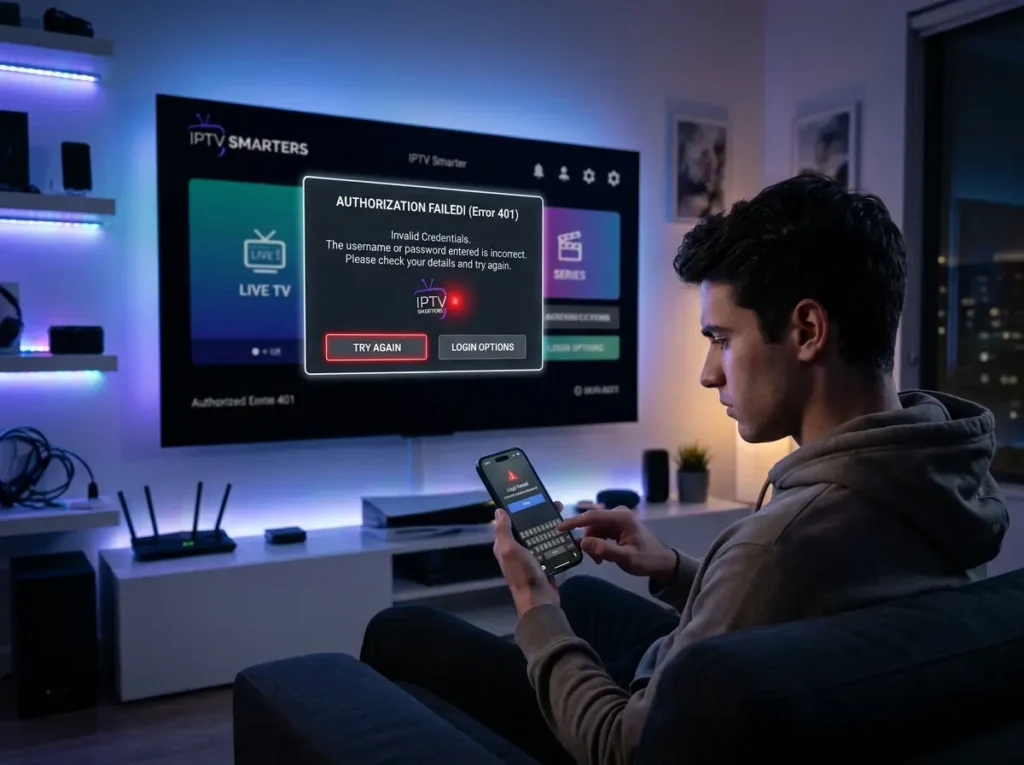
Seeing the iptv smarters failed to authorize error is one of the most frustrating experiences for IPTV viewers. You open the app, enter your credentials, and instead of your channel list loading, you’re met with an authorization error that blocks access entirely. The stream goes nowhere. The app just sits there.
The good news is that the iptv smarters failed to authorize message is almost always fixable — and in most cases, the cause is straightforward. Whether it’s a credentials issue, a server-side problem with your provider, an app configuration mistake, or a network conflict, each root cause has a clear solution.
This guide walks through every known cause of the error, step-by-step fixes to try in order, how to prevent the problem from recurring, and answers to the questions most users ask when this issue appears on their device.
What Causes the IPTV Smarters Failed to Authorize Error
Before jumping into fixes, understanding why the iptv smarters failed to authorize error occurs helps you target the right solution immediately rather than working through irrelevant steps.
Incorrect login credentials are the most common cause. A single mistyped character in a username, password, or server URL is enough to trigger the error. This includes invisible issues like trailing spaces copied with a URL, or incorrect capitalization in a case-sensitive password field.
Expired or suspended subscription is the second most frequent reason. If your IPTV subscription has lapsed, been suspended for non-payment, or been deactivated by the provider, the server will reject the authorization request and the app displays the iptv smarters failed to authorize message.
Maximum connections reached. Most IPTV subscriptions allow a defined number of simultaneous streams. If that limit is already being used — by another device on your account, or by a previous session that did not close cleanly — the server refuses the additional connection and returns an authorization failure.
Server-side issues at the provider. If your provider’s authentication server is temporarily offline, overloaded, or undergoing maintenance, legitimate credentials will still fail. The iptv smarters failed to authorize error appears even though nothing is wrong on your end.
Incorrect portal URL or Xtream Codes format. IPTV Smarters Pro accepts several login methods — M3U URL, Xtream Codes API, and external portal. If the URL format entered does not match what the app expects for the selected login method, the authorization attempt fails before credentials are even checked.
App cache or data corruption. In some cases, corrupted local app data causes the iptv smarters failed to authorize error even when credentials and server availability are correct. Clearing the app cache resolves this without affecting saved playlists or account information.
DNS resolution failures. If your device cannot resolve the domain name of your provider’s server, the authorization request never reaches its destination. This produces the same error even though the credentials and server are both valid.
Step-by-Step Fixes for IPTV Smarters Failed to Authorize
Work through these fixes in order. Each step addresses a specific cause, starting with the most common and least disruptive.
Fix 1 — Re-Enter Your Credentials Manually
Do not copy and paste credentials from a message or email. Instead, type your username, password, and server URL manually, character by character. Pay particular attention to:
- Uppercase and lowercase letters in passwords
- The full server URL including the correct port number (e.g.,
:8080or:25461) - No trailing spaces at the end of any field
If you are using Xtream Codes login, confirm that the server URL, username, and password are entered in the correct fields — mixing these up is a common mistake that produces the iptv smarters failed to authorize error immediately.
Fix 2 — Verify Your Subscription Status
Contact your IPTV provider and confirm that your subscription is active. Ask specifically whether your account shows as active in their system and whether the maximum connection limit has been reached. If your subscription has expired or your connection limit is full, this is the cause — and the solution is straightforward.
Fix 3 — Clear IPTV Smarters App Cache
On Android devices:
- Go to Settings → Apps → IPTV Smarters Pro
- Select Storage
- Tap Clear Cache (do not clear data unless necessary, as this removes saved playlists)
- Reopen the app and attempt authorization again
On Fire TV Stick devices, the same path applies through Settings → Applications → Manage Installed Applications.
Fix 4 — Check Your Internet Connection
A weak or unstable connection can prevent the authorization request from completing. Test your internet connection on another app or browser. If connectivity is the issue, switch from Wi-Fi to a wired Ethernet connection where possible, or move your device closer to the router. Retry the authorization once a stable connection is confirmed.
Fix 5 — Change Your DNS Settings
If your default ISP DNS is blocking or failing to resolve your provider’s server domain, switching to a public DNS server can resolve the iptv smarters failed to authorize error immediately.
On most devices, change DNS settings to:
- Primary DNS: 8.8.8.8 (Google)
- Secondary DNS: 1.1.1.1 (Cloudflare)
Apply the change at the router level to affect all connected devices, or configure it directly in the network settings of the affected device.
Fix 6 — Reinstall IPTV Smarters Pro
If cache clearing does not resolve the issue, a full reinstall removes any corrupted app data. Uninstall the application completely, restart your device, download the latest version of IPTV Smarters Pro from the official source, and set it up fresh with your credentials.
Fix 7 — Contact Your IPTV Provider
If all device-side fixes fail, the authorization issue is likely server-side. Contact your provider and report the iptv smarters failed to authorize error specifically. Ask them to:
- Confirm your account is active
- Reset your active connections on their server
- Verify the correct server URL format for IPTV Smarters Pro
- Check whether their authentication server is experiencing any issues
A responsive provider will resolve server-side authorization failures quickly.
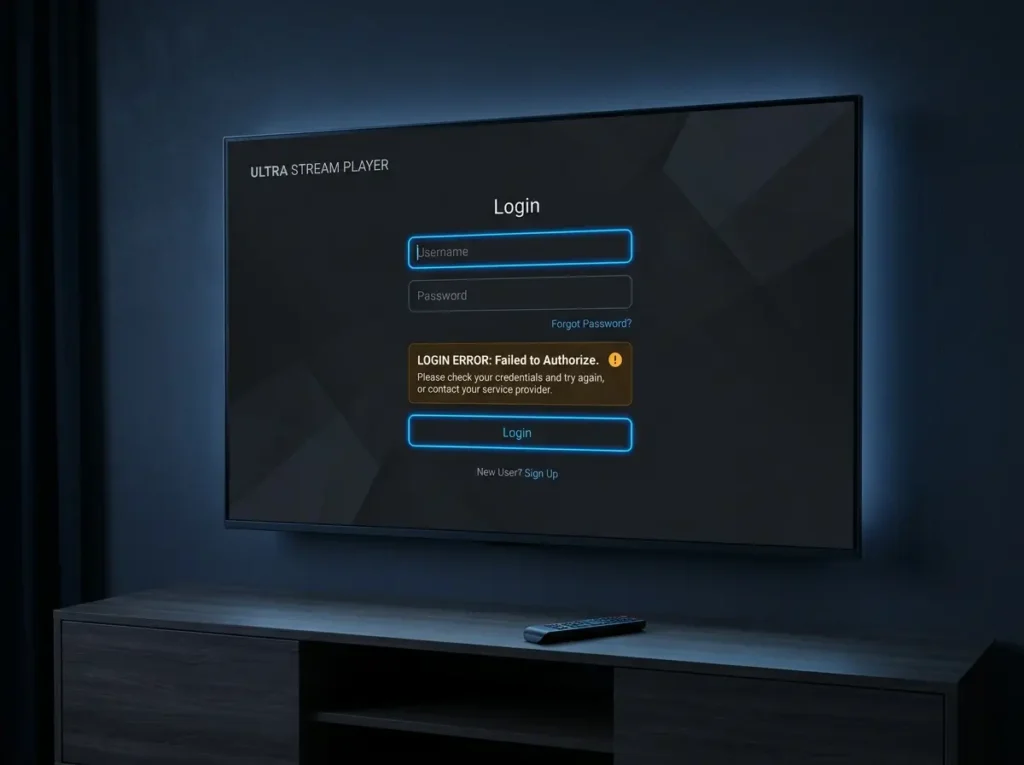
IPTV Smarters Failed to Authorize on Specific Devices
The error behaves consistently across platforms, but device-specific nuances are worth noting.
Android smartphones and tablets: The most common cause on Android is cached data from a previous account setup. Clear cache first, then re-enter credentials. If the app was sideloaded from an unofficial source, reinstalling from a verified source often resolves persistent authorization errors.
Fire TV Stick: Amazon’s Fire OS occasionally restricts background data for apps in a way that interrupts authorization requests. Enable unrestricted data access for IPTV Smarters Pro in Fire TV settings, and confirm that the device’s date and time are set correctly — timestamp mismatches can cause authentication failures on some server configurations.
Smart TVs: Authorization errors on smart TV versions of the app are frequently caused by outdated app versions. Check for an update to IPTV Smarters in your TV’s app store before attempting other fixes.
iOS devices: On iPhone and iPad, clearing cache requires uninstalling and reinstalling the app, as iOS does not expose granular cache clearing for individual apps. Reinstall from the App Store with fresh credentials.
How to Prevent IPTV Smarters Failed to Authorize in the Future
Once you’ve resolved the iptv smarters failed to authorize error, a few habits reduce the likelihood of it recurring.
Keep your subscription renewed before it lapses. Set a calendar reminder a few days before your subscription renewal date. An expired subscription is one of the most avoidable causes of this error.
Close the app cleanly after each session. Leaving IPTV Smarters running in the background on multiple devices can consume your connection allowance and trigger authorization failures on new attempts. Force-close the app when you finish watching.
Save your credentials securely. Store your server URL, username, and password in a password manager or secure note. Having accurate credentials instantly available eliminates transcription errors when re-entering login details.
Update the app regularly. IPTV Smarters Pro releases updates that improve compatibility with provider server configurations. Running an outdated version increases the risk of authorization errors when providers update their backend systems.
Monitor your provider’s status. Some providers maintain a status page or support channel where planned maintenance and outages are communicated. Following these updates helps you identify quickly whether a new authorization error is your issue to fix — or theirs.
IPTV Smarters Failed to Authorize — Frequently Asked Questions
Why does the iptv smarters failed to authorize error appear after working fine previously?
The most common reasons for a previously working setup suddenly failing are subscription expiry, the connection limit being reached on another device, or a provider server change that requires re-entering credentials with an updated URL.
Can a VPN cause the iptv smarters failed to authorize error?
Yes. Some IPTV providers block connections from known VPN IP ranges. If you recently enabled a VPN, try disabling it and retrying authorization. If the error clears, either connect through a different VPN server or whitelist the IPTV app from VPN routing.
Does the error mean my account has been banned?
Not necessarily. Credential errors, expired subscriptions, and server-side issues all produce the same authorization error message. Contact your provider before assuming your account has been deactivated.
How many devices can I use simultaneously with IPTV Smarters?
This is determined by your subscription’s connection allowance, not by the app itself. Check with your provider to confirm how many simultaneous streams your plan supports.
Is the iptv smarters failed to authorize error the same as “wrong credentials”?
Not always. Wrong credentials are one cause, but the same error also appears for expired accounts, connection limit overruns, server outages, and DNS failures. Work through the fixes above before concluding credentials are the issue.
Conclusion: Resolving IPTV Smarters Failed to Authorize Quickly
The iptv smarters failed to authorize error is solvable in the majority of cases within minutes. Start by verifying your credentials manually, confirm your subscription is active, clear the app cache, and check your internet connection. If those steps don’t resolve it, a DNS change or full reinstall usually does.
For persistent cases where every device-side fix has been tried, the issue lies with your provider’s server — and direct contact is the fastest path to resolution. A reliable provider will diagnose and fix server-side authorization failures promptly.
With the right troubleshooting approach, the iptv smarters failed to authorize message goes from a frustrating dead end to a quickly resolved inconvenience.

The step-by-step fixes outlined here are really clear. I think the tip about verifying your subscription status first is especially useful, since it can save a lot of time before trying more technical solutions.
This breakdown of why IPTV Smarters fails to authorize is incredibly timely, especially since the DNS settings and server-side issues often get overlooked by users who assume it’s always just a credentials error. I appreciate the specific step-by-step approach, as clearing the cache before reinstalling the app can save a lot of unnecessary frustration. It’s a great resource that really helps pinpoint the root cause without throwing generic answers at the problem.